
Can You Display Family Photos on Your TV? 5 Easy Ways
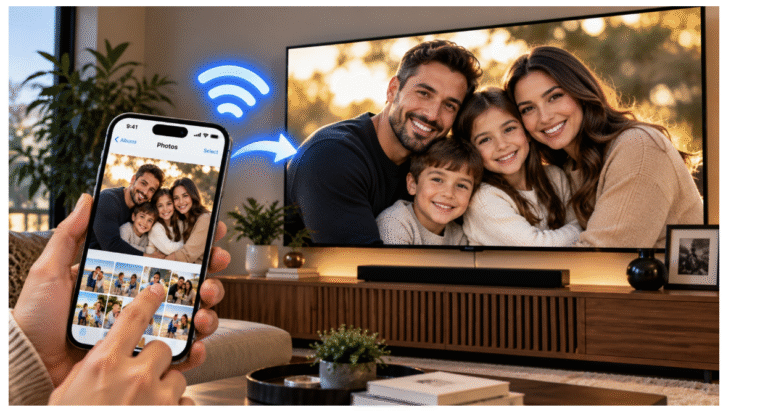
Your television doesn’t have to be used only for watching movies and streaming shows. It can also become a beautiful digital photo frame displaying your favorite family memories. From vacation pictures and wedding photos to birthdays and childhood moments, displaying photographs on a large screen can make your living room feel more personal. The same technology used for digital menu screens in restaurants can also be used to showcase images on compatible televisions. Platforms like Billiie allow users to upload finished pictures and display them remotely, making it possible to turn an ordinary TV into a rotating photo display.
Whether you own a Samsung TV, Fire TV, Android TV, or another smart television, there are several ways to get your family pictures onto the screen.
1. Turn Your Smart TV Into a Digital Photo Frame
One of the simplest ways to display family photos is to use your television’s built-in photo viewing features.
Many modern smart TVs support image slideshows, media applications, or screensaver features that can display personal photographs.
Instead of leaving your television on a blank screen, you can use it to showcase meaningful memories.
For example, you might create a collection featuring:
- Family vacations and road trips
- Wedding and anniversary photographs
- Children’s birthdays and milestones
- Holiday celebrations
- Old family photographs
- Graduation and special occasion pictures
Depending on the television, you may be able to adjust how long each picture remains visible before the next one appears.
Some TVs also offer transition effects that make the slideshow feel more polished.
Before starting, check your television’s settings or photo applications to see which options are available.
2. Display Family Photos From Your Phone
If most of your family photographs are stored on your smartphone, you may not need to transfer them anywhere.
Many smart televisions support wireless casting or screen mirroring.
This allows you to display photographs directly from your phone onto a larger screen.
For iPhone Users
If your television supports Apple AirPlay, you can share compatible photos wirelessly.
Connect your iPhone and television to the same Wi-Fi network, open your Photos app, select a picture, and use the available AirPlay option.
You can also use Screen Mirroring from Control Center on supported devices.
For Android Users
Android smartphones may offer features such as Cast, Smart View, or Screen Mirroring.
Open the appropriate casting feature, select your compatible television, and display the photograph.
The available steps vary depending on the phone manufacturer and TV model.
This method is especially convenient when family members visit and want to share photographs from their own devices.
However, screen mirroring is better suited to occasional viewing than leaving pictures displayed all day.
3. Use a USB Flash Drive for a Family Photo Slideshow
A USB flash drive is another simple way to display photographs on your television.
This method can be useful if you don’t want to depend on Wi-Fi or keep your smartphone connected.
How to Set It Up
- Gather your favorite family photographs.
- Transfer them to a USB flash drive.
- Connect the flash drive to your television’s USB port.
- Open the television’s media player.
- Select your photographs.
- Start a slideshow if the feature is supported.
Many televisions support common photo formats such as JPEG and PNG.
You may also be able to organize pictures into folders for different occasions.
For example, one folder could contain family vacations, while another includes birthday celebrations.
What Are the Limitations?
USB photo displays are convenient, but updating them can require additional work.
Whenever you want to add new photographs, you may need to remove the flash drive and copy the updated files.
If you frequently take family pictures, a wireless or remotely managed solution may be more practical.
4. Use Digital Signage Software for a Continuous Photo Display
If you want family photographs to appear on your television throughout the day, digital signage software offers another option.
Digital signage is often associated with businesses, advertising, and restaurant menus, but its basic function is displaying images and videos on screens.
That same functionality can work for personal photo collections.
For example, a compatible digital signage platform can allow you to upload family photographs, organize them into a playlist, and assign them to a television.
Why This Can Be Useful
Unlike screen mirroring, you don’t need to leave your phone connected to the television.
You can prepare your images, upload them, and allow the playback application to display them.
Depending on the software, you may also be able to schedule when photographs appear.
Imagine displaying family pictures during a birthday celebration or creating a holiday slideshow that plays on your living room television.
For households with multiple compatible screens, some platforms can manage content across more than one television.
Before choosing software, check its device compatibility, supported file formats, privacy settings, and subscription requirements.
5. Create a Family Photo Gallery With Google Photos or Other Apps
Cloud-based photo services offer another convenient way to organize and share family memories.
Services such as Google Photos allow users to create albums and store images online.
On compatible televisions and streaming devices, supported applications or photo display features may allow those images to appear on the screen.
Organize Photos Into Albums
Instead of displaying every photograph on your phone, create albums dedicated to specific memories.
You might organize them by year, event, or family member.
For example:
Family Memories 2026: A collection of your favorite moments from the year.
Summer Vacations: Beach trips, sightseeing, and travel photographs.
Birthday Celebrations: Pictures from family birthday parties.
Wedding Memories: Favorite wedding and anniversary photographs.
Then and Now: Childhood pictures alongside recent family portraits.
Organized albums make it easier to find and display meaningful pictures.
Availability of automatic photo displays varies by television, streaming device, and application.
How to Make Family Photos Look Better on a TV
A photograph that looks beautiful on your smartphone may appear different on a large television.
This is usually because televisions and phones use different screen sizes and aspect ratios.
Most modern televisions use a 16:9 widescreen format.
For a standard Full HD television, 1920 × 1080 pixels is a common image size.
However, many smartphone photographs are taken vertically.
When displayed on a widescreen television, portrait pictures may have empty space on either side.
You can address this by creating a collage, adding a blurred background, or placing multiple portraits together in a landscape design.
Avoid stretching photographs to fill the screen because this can distort faces and other details.
Choose High-Quality Pictures
Use original, high-resolution photographs whenever possible.
Images downloaded from messaging applications may be compressed, making them look blurry on larger displays.
Adjust Your Television Settings
Brightness, contrast, and color settings can affect how photographs appear.
Choose settings that make your pictures look natural rather than excessively bright or saturated.
Consider Privacy
Family photographs can contain personal information or sensitive moments.
If you use a cloud service or digital signage platform, review account access and sharing settings.
Avoid publicly sharing private albums or display links.
Can You Leave Family Pictures on Your TV All Day?
Yes, many televisions can display photographs for extended periods, but there are a few things to consider.
Keeping the same static photograph visible for long periods can increase the risk of image retention or burn-in on certain display technologies, particularly OLED screens.
A rotating slideshow is generally preferable to displaying one unchanged image continuously.
You should also review your television’s power-saving settings and the manufacturer’s guidance for prolonged use.
If your goal is to create a permanent digital photo frame, consider whether a dedicated photo display or a television with suitable ambient display features would be a better fit.
Frequently Asked Questions
Can I put my own pictures on a smart TV?
Yes. Many smart TVs allow you to display personal photographs through screen mirroring, compatible photo applications, USB storage, or digital signage software.
Can I display family pictures without connecting my phone?
Yes. You can use a USB drive, supported cloud photo features, or digital signage software that stores or caches images for playback.
Can I make my TV show pictures automatically?
Some televisions support photo screensavers, ambient modes, or slideshow features. Digital signage software may also support scheduled image playback.
Can I display different family pictures on multiple TVs?
Yes, depending on the system. Some digital signage platforms allow you to assign different photo playlists to different compatible screens.
What is the best picture size for a TV?
For a standard 16:9 Full HD television, 1920 × 1080 pixels is a useful target. Higher-resolution televisions may benefit from larger image files.
Final Thoughts
Your family photographs deserve more than sitting unnoticed in your phone’s gallery.
With the right setup, your television can become a digital photo frame that brings your favorite memories into everyday life.
Whether you choose screen mirroring, a USB flash drive, cloud photo albums, or digital signage software, the process can be surprisingly simple.
The best method depends on how frequently you want to update your photographs and whether you prefer a temporary slideshow or a continuous family photo display.
Instead of leaving your television on an empty screen, consider turning it into a gallery filled with the people and moments that matter most.
